September 01, 2026
Pallets
New feature in Goodloading: Advanced palletization
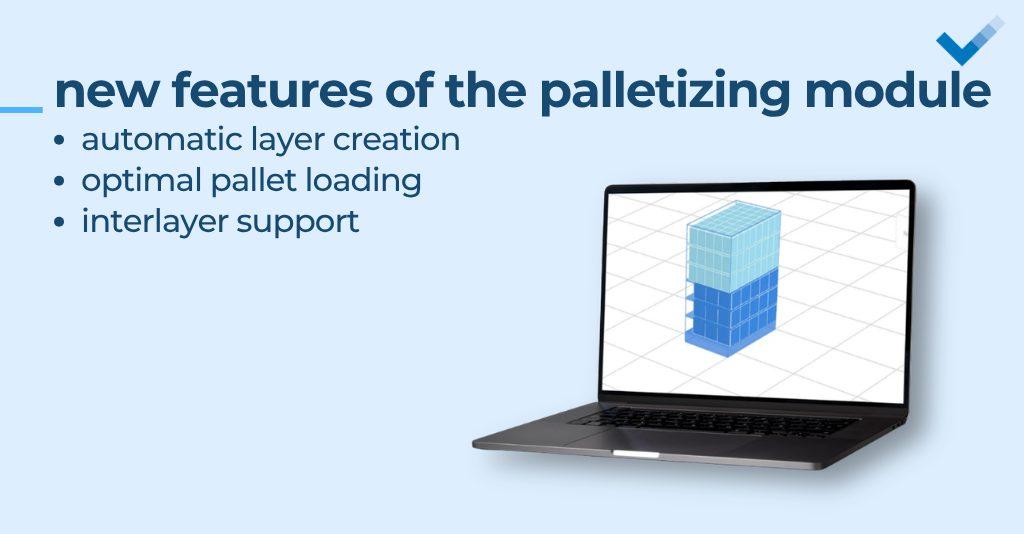
The Goodloading application has been expanded with a palletization module – automatic layer creation, optimal pallet filling and interlayer support. Thanks to this, you can easily check the way the load is arranged and precisely calculate the pallet requirements for larger volumes.
In this article, we explain step by step how the new palletization works and describe the elements of its interface.
Prerequisites for launching the function
To use the layer stacking and pallet filling functions, first add a pallet as a loading space and then go to the “Loading” tab. If your project also includes vehicles or containers, remember that the pallet must be displayed in the main visualization.
Before adding a load, it is worth choosing how to rotate it.
“Fill the pallet” button
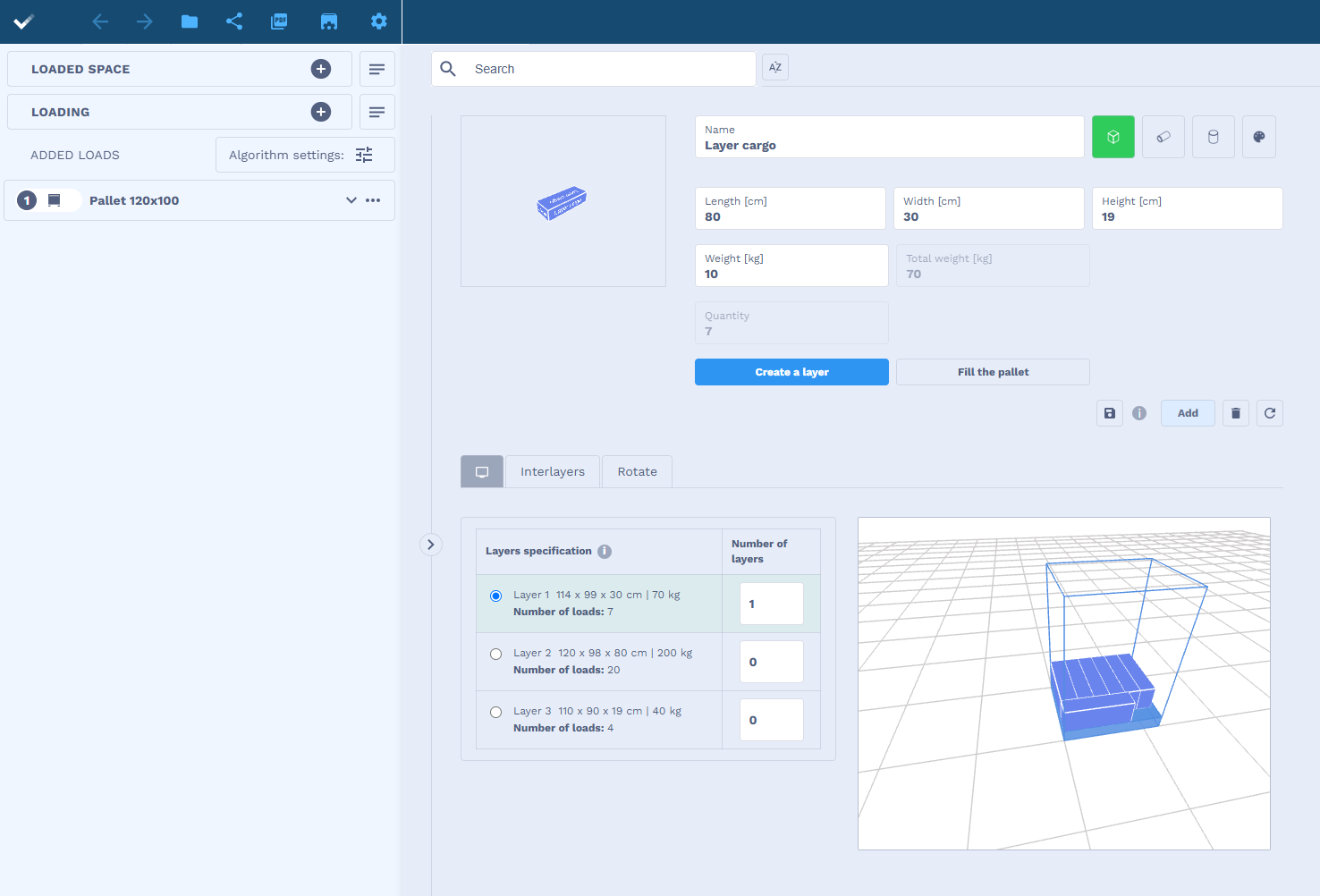
If you want to make the most of the allowable pallet height, click the “Fill the pallet” button. The algorithm will calculate how many loads can be stacked on it. After clicking it, the total number of pieces will be displayed in the previously grayed-out “Quantity” field.
“Create a layer” button
After clicking the “Create a layer” button, the system will analyze the allowed way of rotating the load and display a maximum of 3 arrangement options in the preview – along with information about the number of pieces in the layer.
After selecting the appropriate arrangement, you can specify how many such layers are to be added to the pallet.
Displaying and editing layers
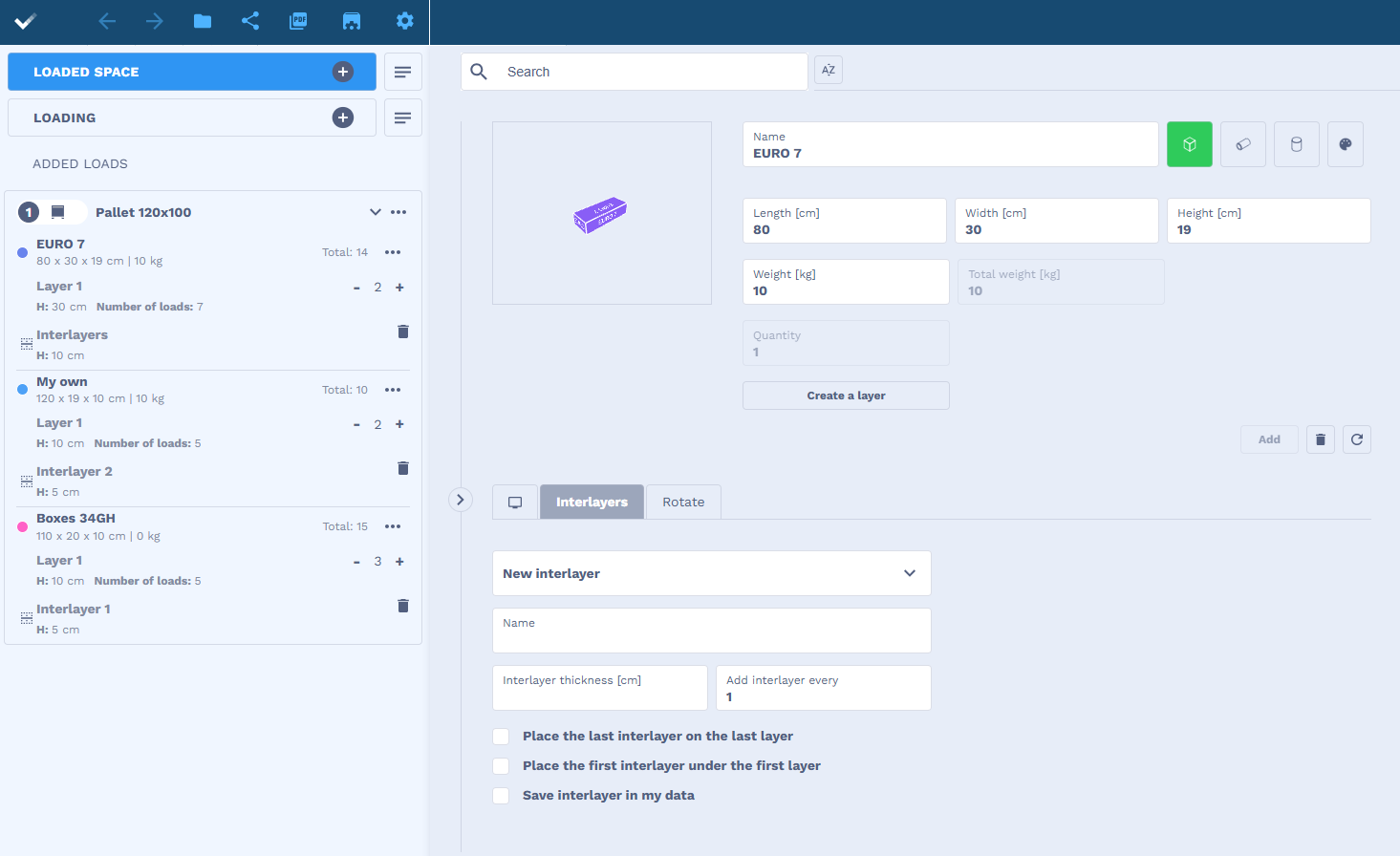
After adding a layer, the name of the load group (as before) and information about the layer are displayed in the load list. The number displayed next to it means the number of layers that can be increased “+” or decreased “-“.
The letter H stands for layer height.
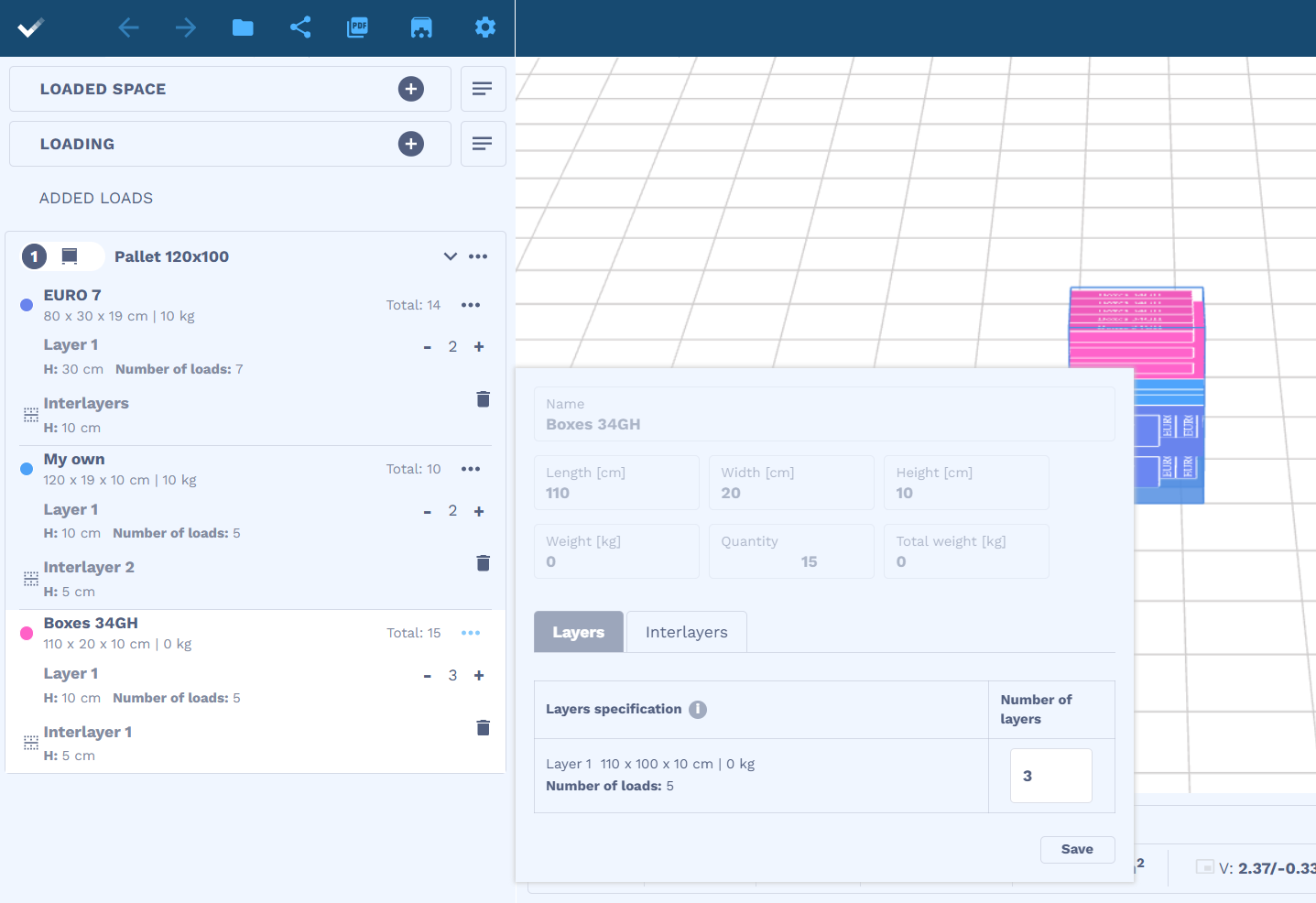
By clicking on the load editing in the list, we can change the layer arrangement and add interlayers.
Interlayer configuration and addition
To secure the load and improve pallet stability, the application allows you to add interlayers.
The interlayer is added during the creation of load layers, in the “Interlayers” field. To add it, you need to define its thickness and position. Each interlayer can be saved and reused by selecting it from the saved list.
The Name field, which appears when creating an interlayer, is optional – if left blank, the system will automatically label it “Interlayers” with a subsequent ordinal number.
If the load is arranged on several layers, you can specify the frequency of adding interlayers – for example, every few layers or only on the very top (on the last one).
All saved interlayers, along with the option to remove them, can be found in the “My Account” >> “My Loads” module.
What if you add a layer to a pallet and forget to add an interlayer? There are two possibilities.
- In the load editing on the load list, you will still be able to add and manage interlayers.
- If you want to stack several different packages in layers, when adding another product, you can indicate the interlayer added under the newly added product.
Do you have questions about the new functionalities? Write to us, we will be happy to help: info@goodloading.com